Overview
There are 3 main locations where you can find your GFI license key:
- The actual product dashboard UI
- The GFI Accounts portal
- Your email account
- You can always search in the email account that you registered for your GFI product to find your license key.
This article will help you retrieve your GFI license key either from the GFI Accounts Portal, or from the actual GFI product you are using, and this comes in handy also when getting in touch with support, as the support entitlement are based on the license validity.
Getting the key from the product dashboard/UI
Each GFI product will have the license key available through its UI/dashboard, and below you can find the breadcrumb paths that will get you to the license key of your respective product, once logged into the administrative section of your product.
Kerio Connect
Status > Dashboard > Add tile > License details
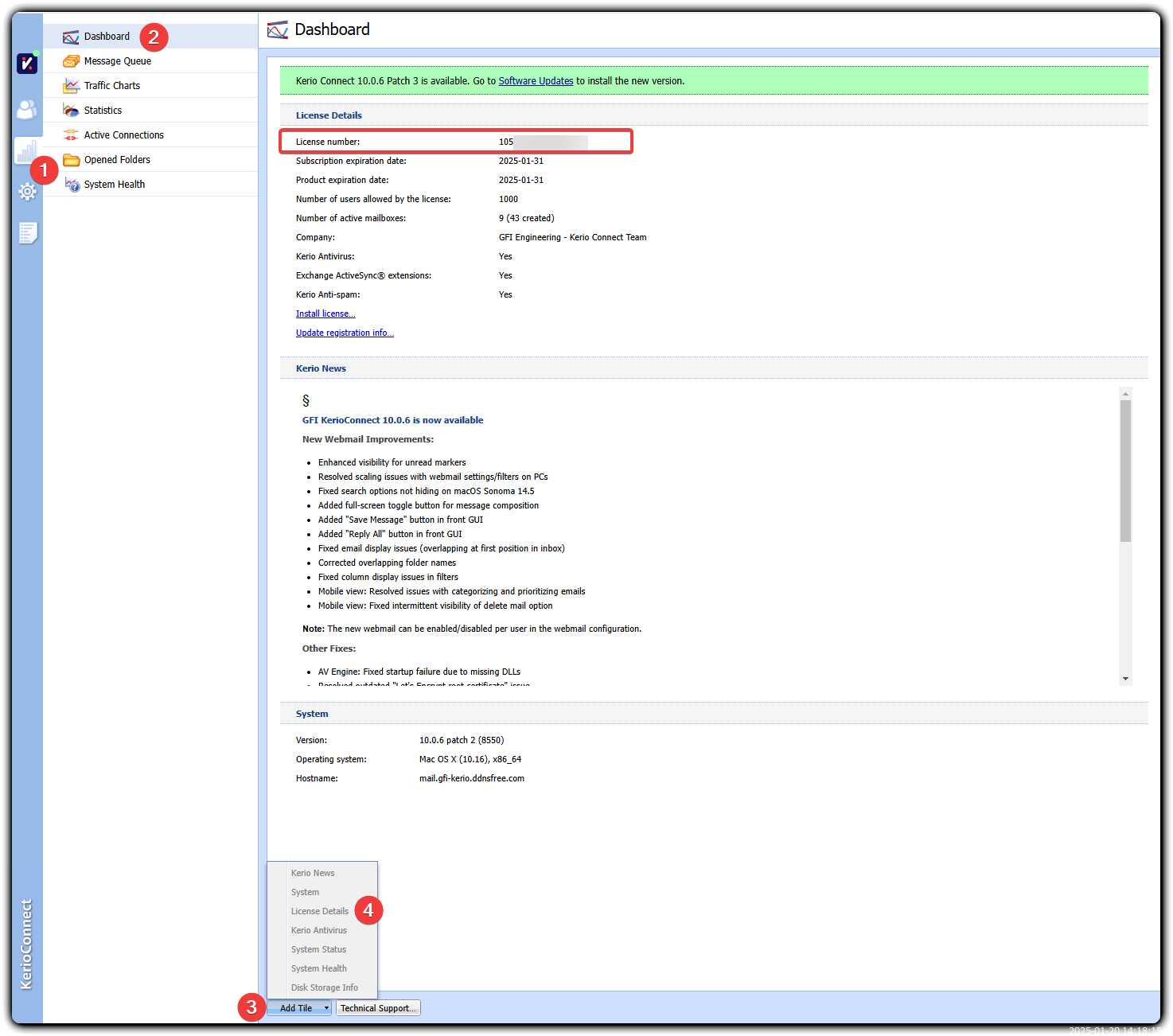
NOTE: you may already have the License details tile enabled by default, in which case you would find the license key right away
Kerio Control
Configuration > Dashboard > Add tile > License
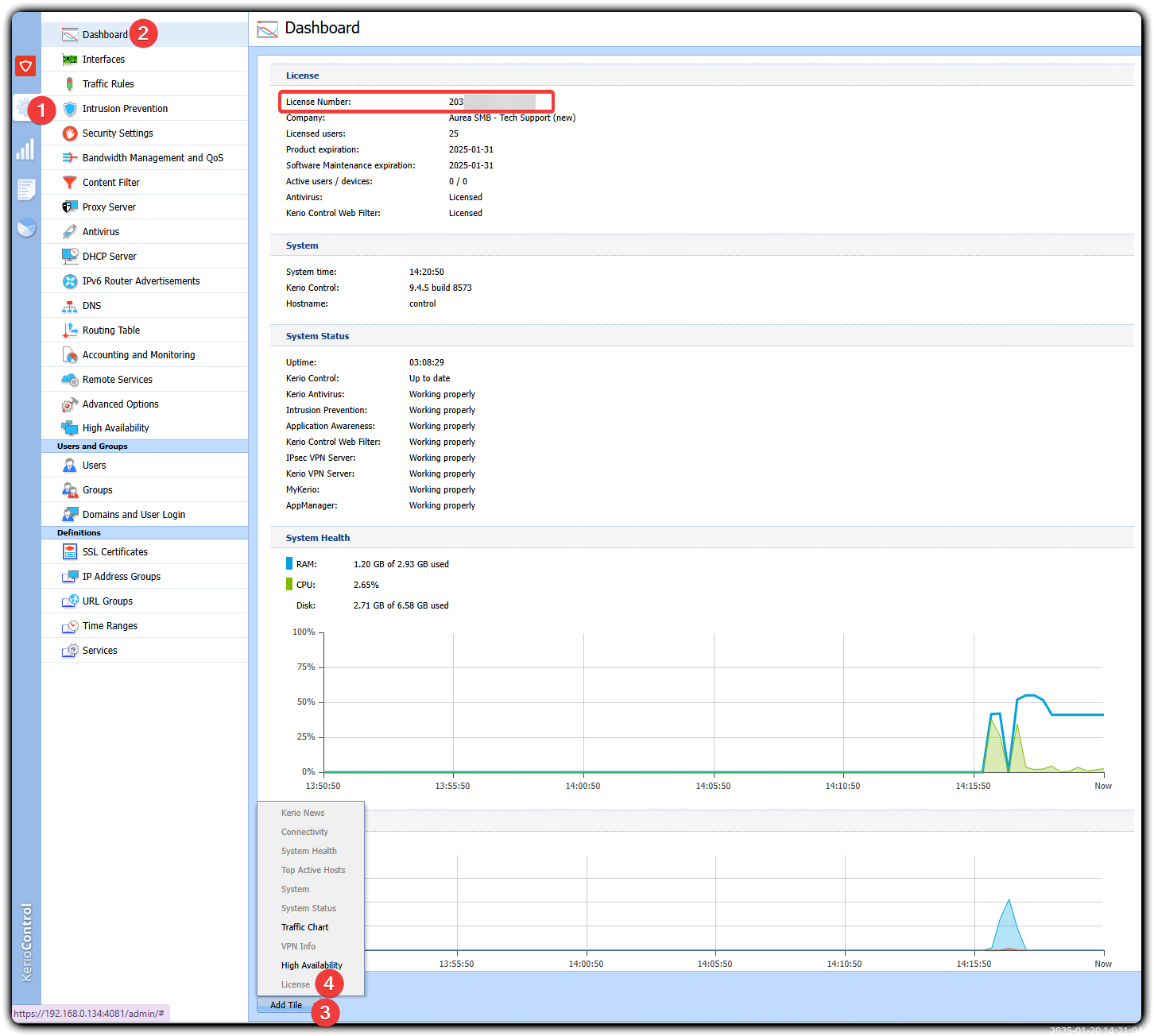
NOTE: you may already have the License tile enabled by default, in which case you would find the license key right away
GFI - Archiver
Viewing and Editing License Keys
Configuration > Change License Key > Edit License Key

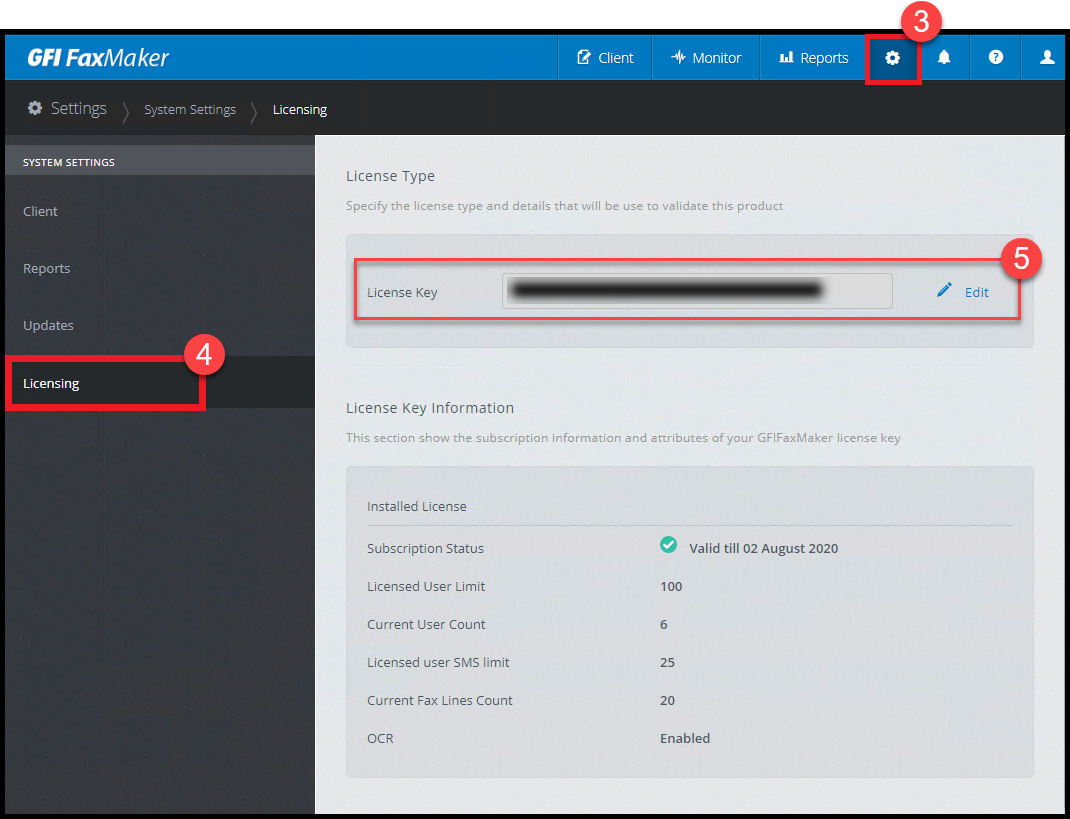
GFI - FaxMaker
Viewing/Applying New License Key in GFI FaxMaker
Configuration (gear icon) > Licensing
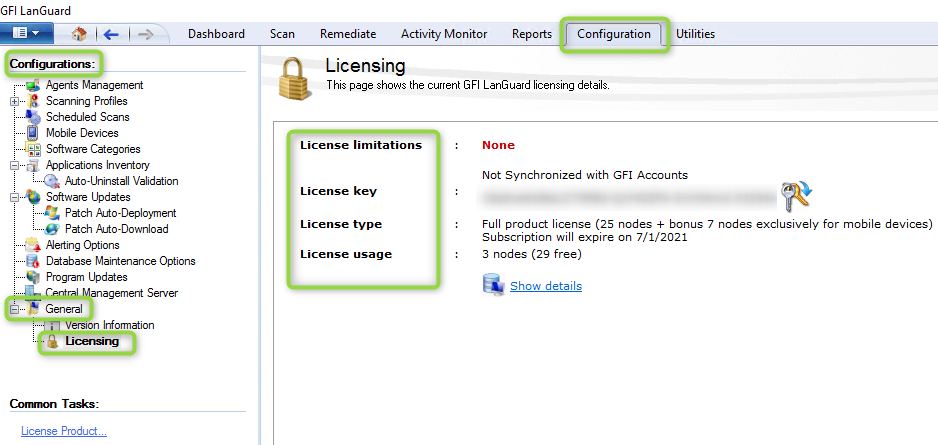
GFI - LanGuard
Where can I find my license key and see license details and usage?
GFI LanGuard configuration console > Configuration tab > General Licensing
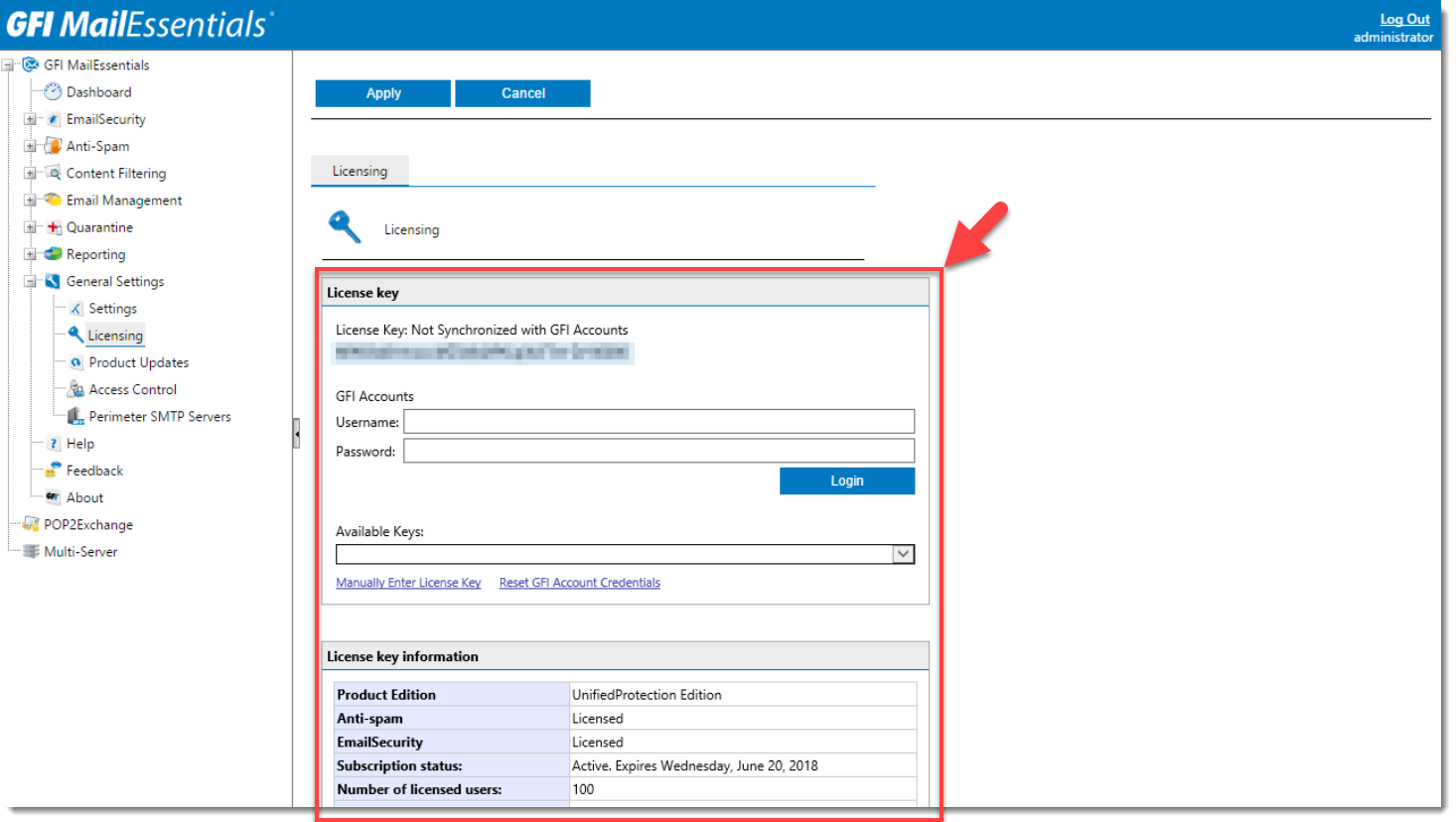
GFI - MailEssentials
GFI MailEssentials Dashboard > General Settings > Licensing
Getting the key from the GFI Accounts Portal (all GFI products)
Prerequisites
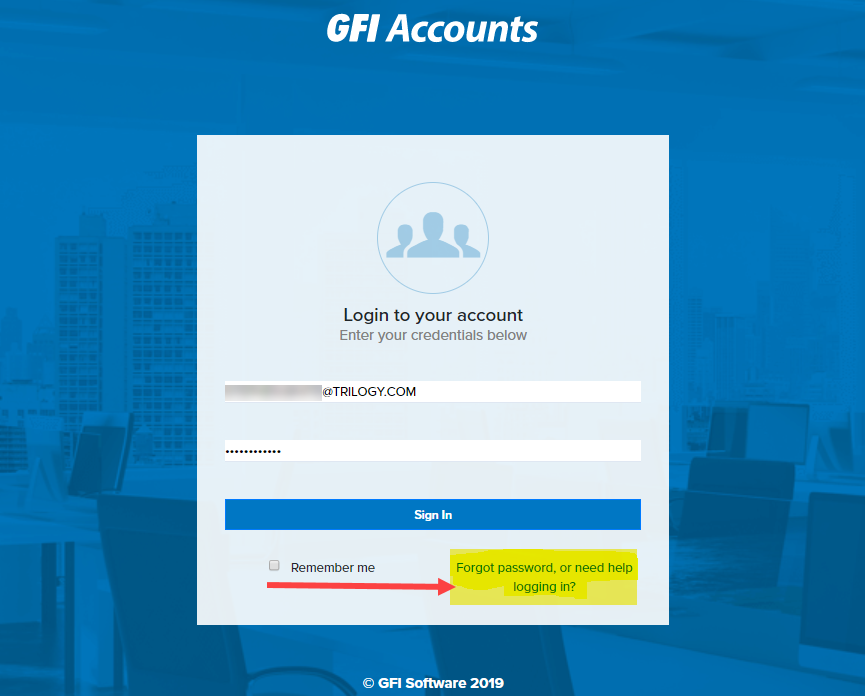
Access to the GFI Accounts Portal will be required for the steps listed in the process section. If unable to log in to the GFI Accounts Portal please do the following:
- Navigate to GFI Accounts Portal and select “Forgot password?”
-
Enter the email address you use for GFI accounts to receive instructions on how to reset your password.
-
Instructions explaining how to log in to your account will be provided via email.
-
Steps
The steps below will assist in obtaining your GFI license key.
- Navigate to GFI Accounts Portal.
- Enter your email address and password to login
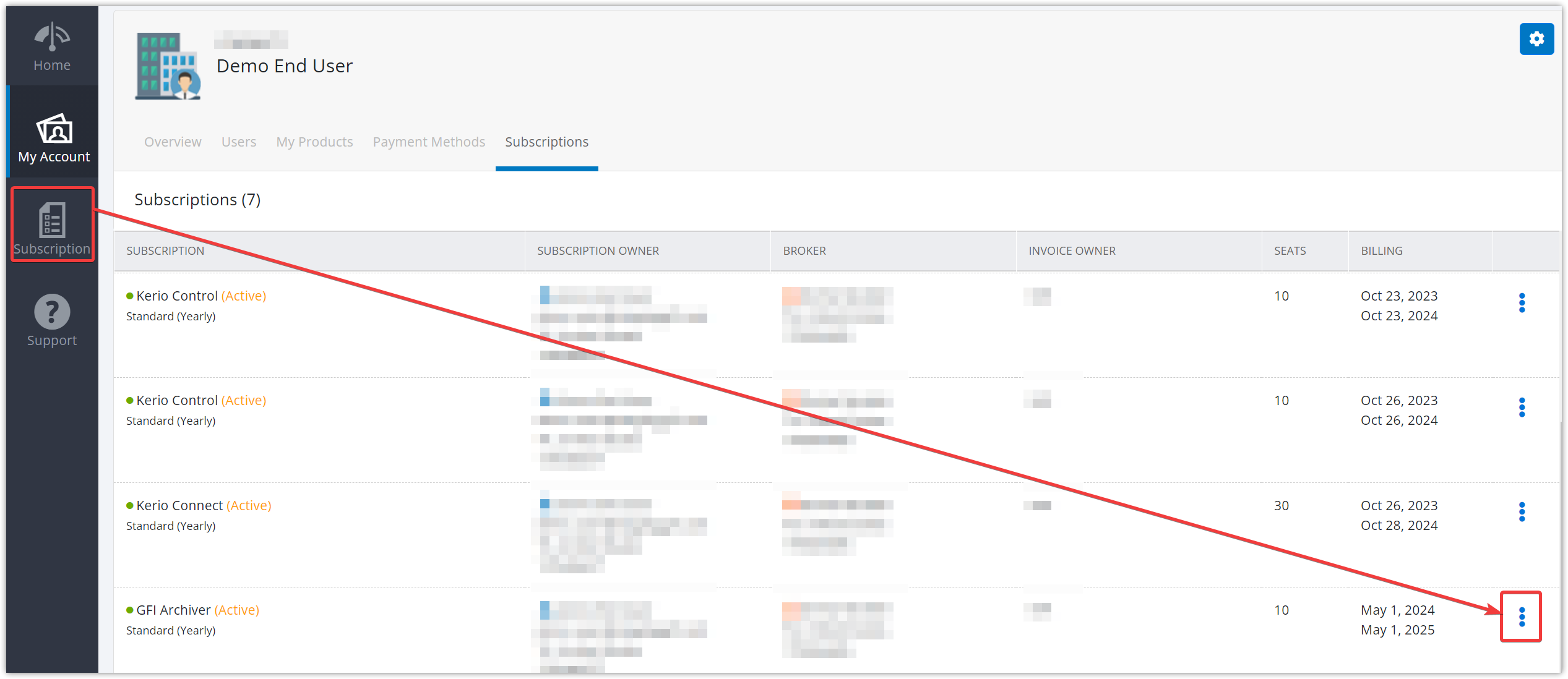
- On the side menu, click Subscription to load the list of your GFI subscriptions
- Locate the desired product subscription and click vertical ellipses > Details
-
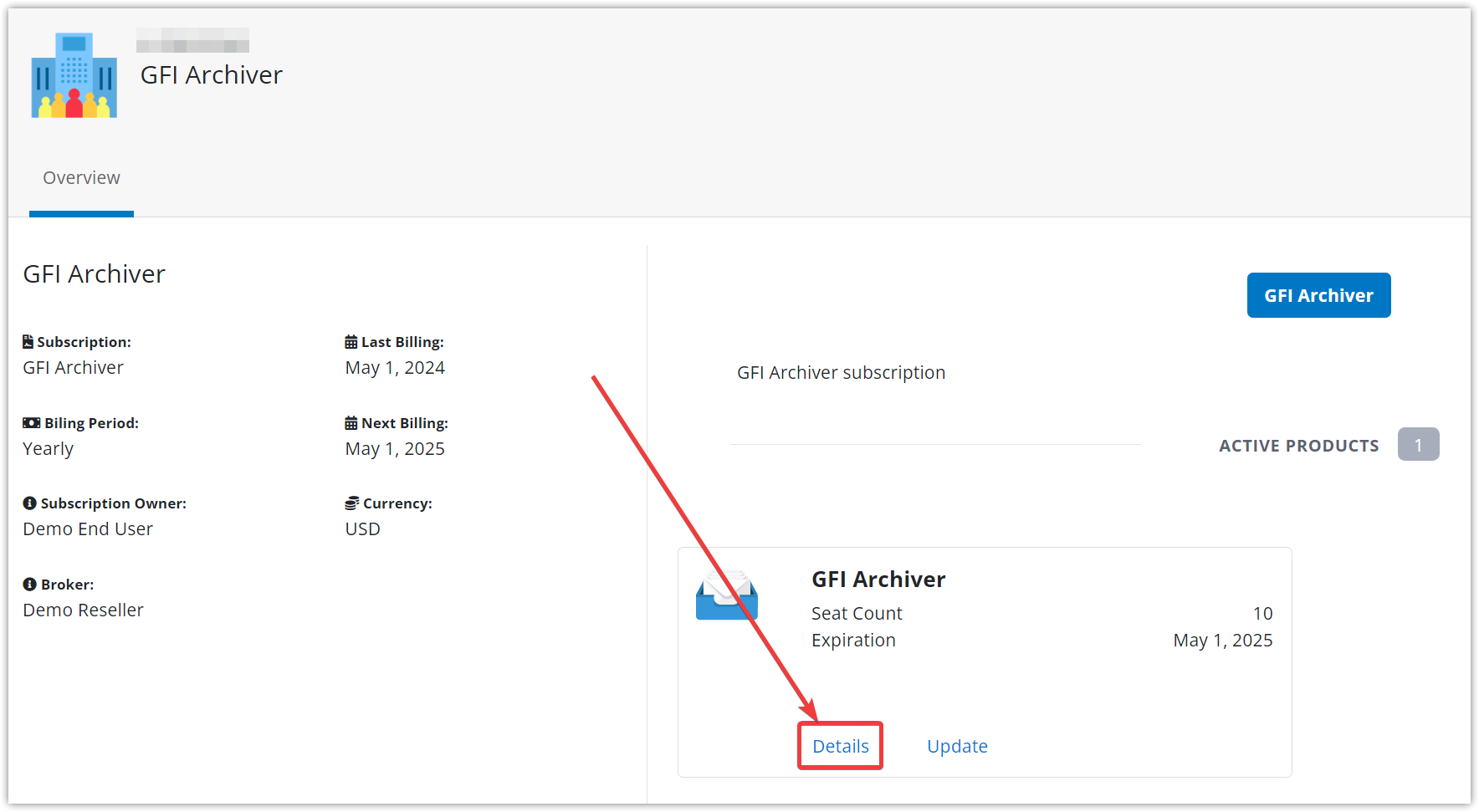
On the subscription Overview page, click the Details link under the product name
-
The Licenses page will load with the license key displayed under the relevant product name
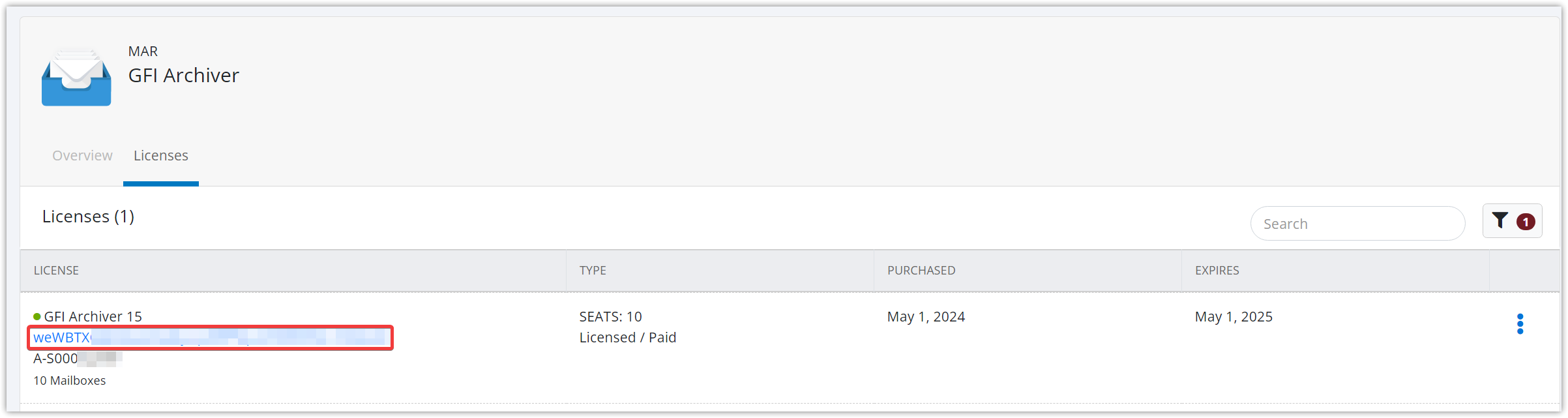
Note: if more than one licenses are listed, the current license is the one with the green dot before the product name (i.e. not orange or red)
Ciprian Nastase
Comments
Ebenezer Lah Ampene
I have noticed that our .eml files are getting stuck and piled up in the folder below, without being processed. any solution?